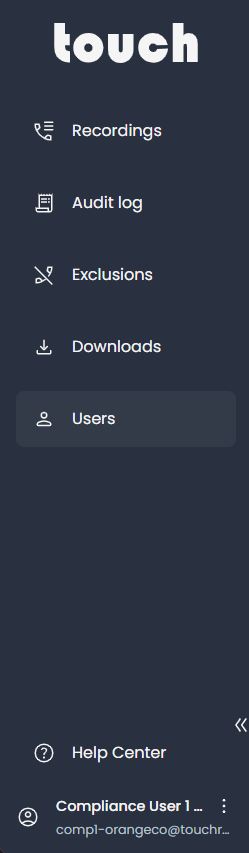
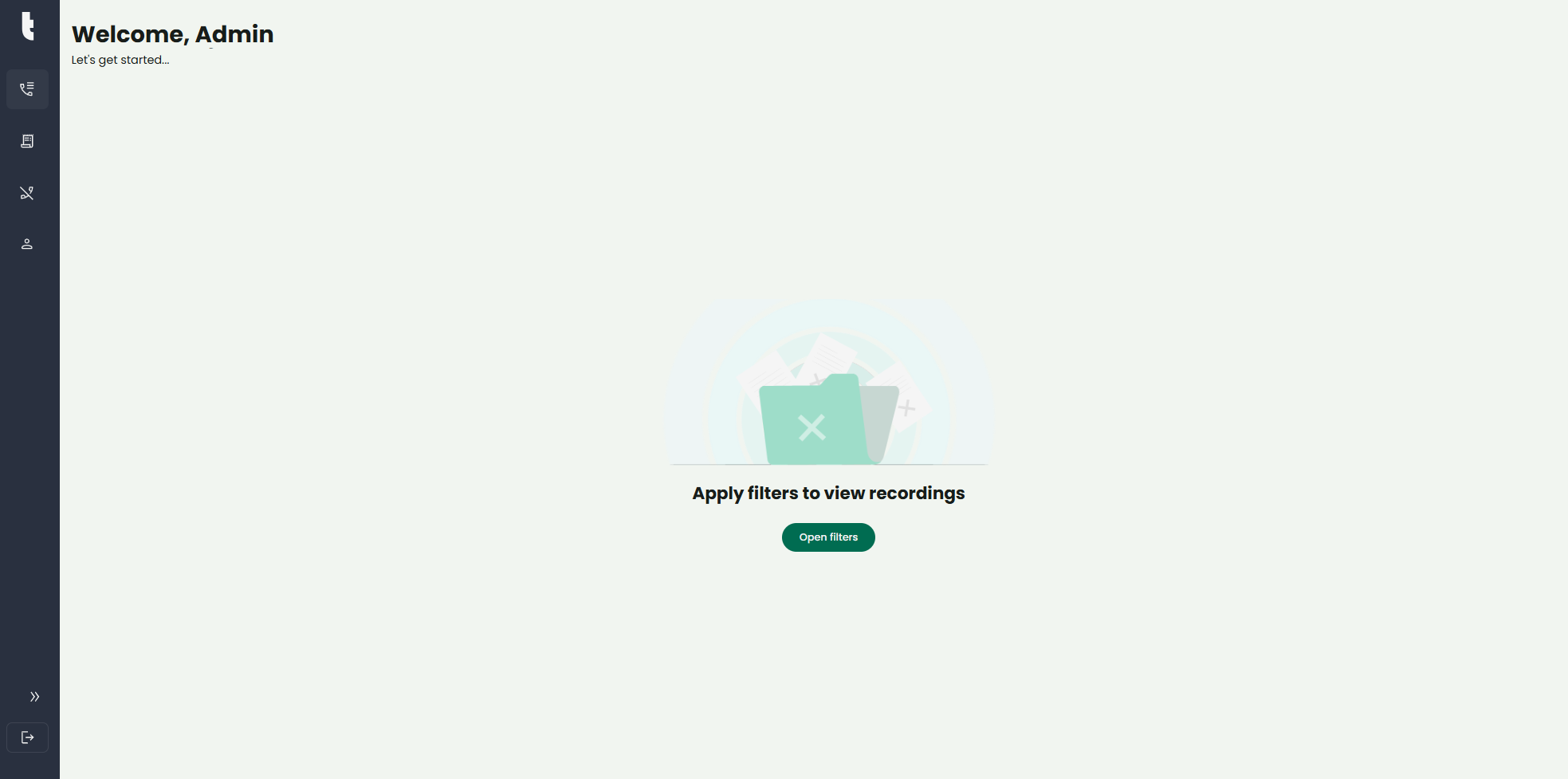
To start viewing recordings, click the phone icon in left sidebar, the click “Open filters” button to start the search.
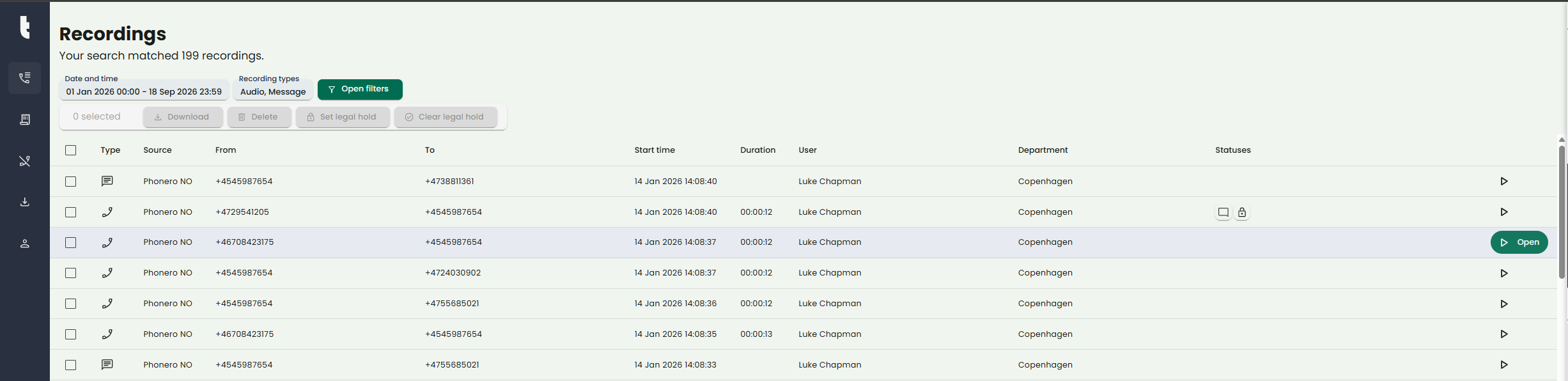
When recordings are shown, the following columns are available:
-
Type - shows information about the type of recording (audio, text, chat etc)
-
Source - shows from which source the recording comes from
-
From - shows from which the communication was initiated
-
To - shows to which the communication was directed
-
Start time - shows date and time the recording was initiated
-
Duration - if audio recording, this shows the duration of the call
-
User - shows which recorded user the recording is associated with
-
Department - shows which department the recorded user is associated with
-
Status - shows if comments or legal hold are added to the recording

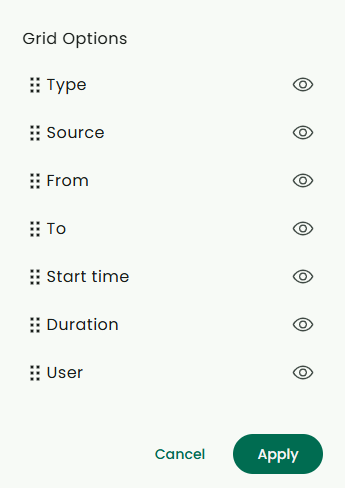
The view can be modified using the gear icon on the bottom left. Use this to arrange column order and visibility.
To navigate multiple pages, use the page pagination tools on the bottom right.

Can be used to configure items per page, shows from-to range of items and navigation items like “first”, “previous”, “next” and “last” item page.
To access a recording, click the “Open” button highlighted when selecting a recording.
Details for the recording are shown above, if it is a voice recording audio graphics are shown and if it is a message the content will be shown.
Click the “Play” button to start listening to a voice recording, the player will appear on a right side panel. You can click in the graphics to jump back/forward.
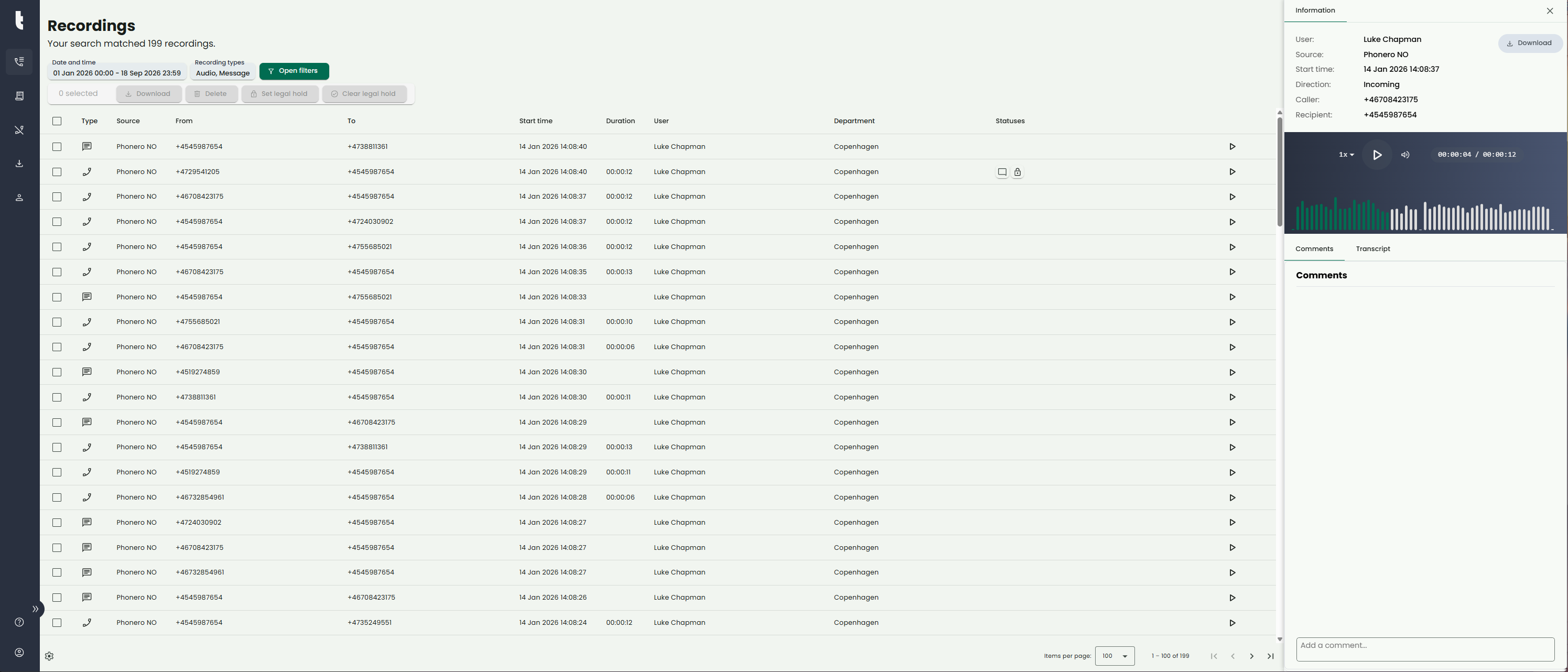
You can add comments to the recording. Write the text in the “Add a comment” field and click “Post”. Comments may be visible for other Administrators.
You can place a recording on Legal Hold. This will prevent the recording from being deleted by retention policy.
The main menu consist of the following items:
-
Recordings - show recordings based on search and filtering
-
Audit log - show actions done by users
-
Exclusions - manage whitelists
-
Downloads - manage packaged zip-files for download
-
Users - show departments and users
-
Help Center - link to these pages
-
User info - user name and email
-
Sign out - sign out of the system
-