
Filters are used to navigate and reduce the number of recordings available for inspection or audit.
Date/time filter
Use this filter to set from and to date/time of the filter request. Only recordings with start time in this interval will be included in the result. This filter is mandatory, and cannot be removed.

Recording type
Use this filter to select type of recording, audio or message. This filter is mandatory, and cannot be removed.

Sources
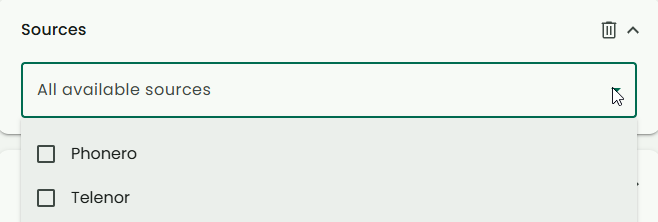
Use this filter to select which sources that shall be included in the result. Default value is all available sources. This filter is optional, and can be removed.
Users
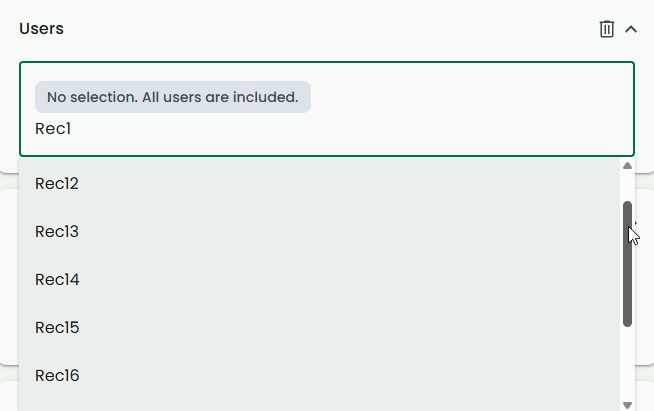
Use this filter to select which recorded users that shall be included in the result. Default selection is “All users are included”. This filter is optional, and can be removed.
Participants
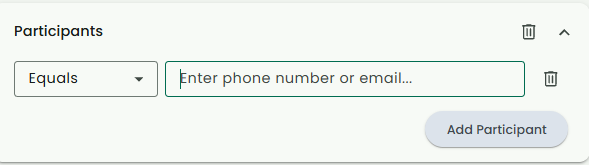
Use this filter to select which participants that shall be included in the result. Default selection is “All participants are included”. This filter is optional, and can be removed. To search for several participants, click “Add Participants”.
Departments
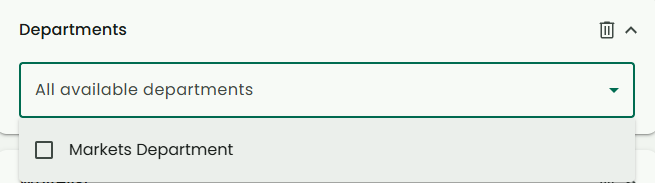
Use this filter to select from which department recorded users and their recordings shall be included in the result. Default selection is “All available departments”. This filter is optional, and can be removed.
Whitelist
Use this filter to select if whitelisted recordings shall be included in the result.

Legal Hold
Use this filter to select if recording on legal hold shall be included in the result

Manage filters
Optional filters can be removed by clicking the bin icon.
All filters can be expanded or collapsed using the arrows.
Click the reset filters to restore default values on all filters.
Use the “+ Filter” button to add available/removed filters.
When all required filter options are added/modified, click the “Apply filters” button, to start the search.

This will navigate you back to the main page, where the search results are shown.